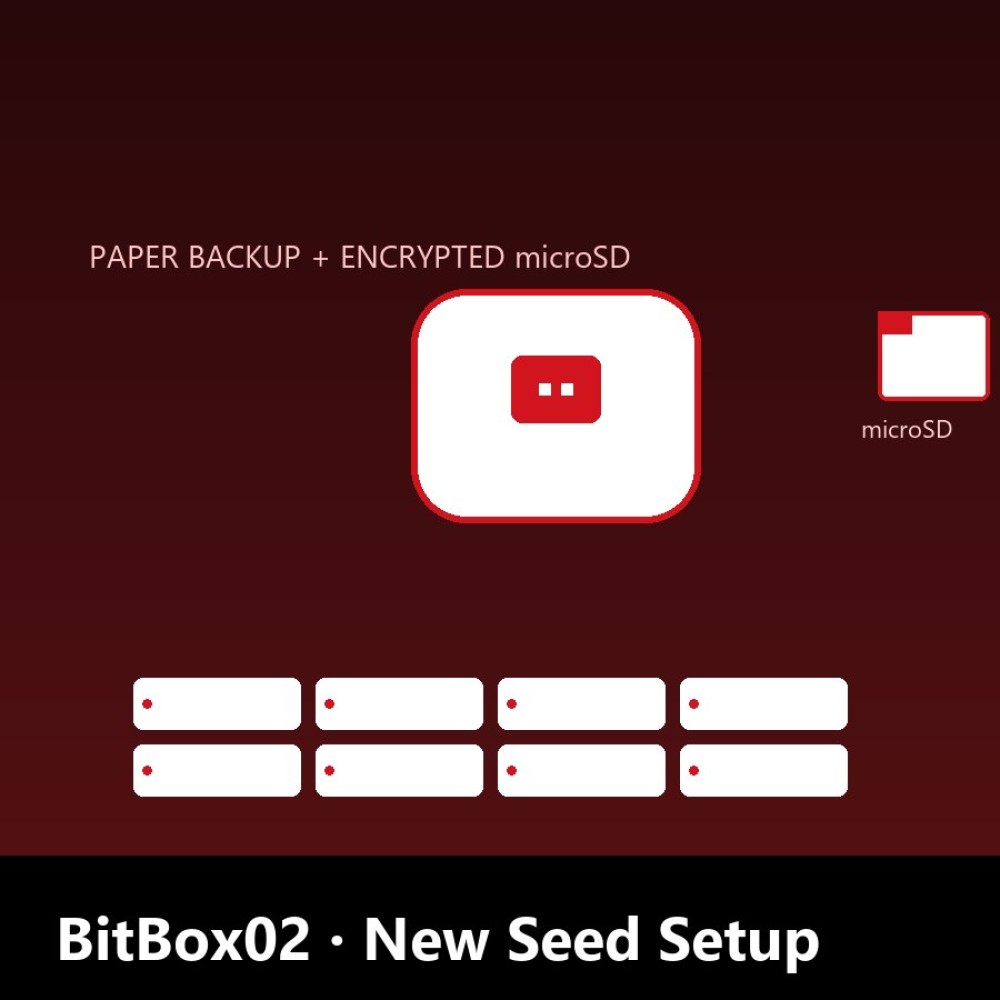
Unlike devices with a full screen for navigation, the BitBox02 relies on two small touch sensors and a compact OLED display, doing most of its talking through the companion BitBoxApp on your phone or computer. That minimalism carries through to setup, which takes only a few guided steps to go from an empty device to a fully backed-up wallet.
Quick overview before the details below:
Checking the device is genuine
When you first connect the BitBox02 to the BitBoxApp, it performs an attestation check — a cryptographic proof that the chip inside is authentic and hasn’t been tampered with before it reached you. This happens automatically and is worth watching for; if the app ever reports that attestation failed, stop and contact Shift Crypto support rather than proceeding.
Creating a new wallet, generated on-device
From the app, choose to create a new wallet rather than restore one. As with other hardware wallets, the seed is generated by the BitBox02 itself using its own randomness source — your phone or computer never sees the raw key material.
The microSD step that makes BitBox02 different
This is where the setup diverges from most competitors. You’ll insert a microSD card into the device, and it writes an encrypted backup of the seed directly onto it. Because the file is encrypted against the device itself, losing the card alone doesn’t hand anyone your funds — but it should still be stored somewhere safe and separate from the device, the same way you’d treat a spare key.
A paper backup too, if you want one
Alongside the microSD backup, BitBox02 can also display the recovery words on its small screen for a traditional handwritten copy. Having both gives you two independent recovery paths, which is worth the extra few minutes:
- Write the words by hand, numbered in order, if you choose to display them.
- Never copy the words into an app, note, or photograph the screen.
- Store the microSD card and the paper backup in two separate locations, so a single fire, flood or theft can’t take out both at once.
Finishing up
You’ll set a device password entered through the touch sensors and the app’s prompts, which is what unlocks the BitBox02 for everyday use afterward. From there, either backup on its own — the microSD card paired with the device, or the written words — is enough to restore the wallet if something happens to the BitBox02 itself.
It’s a small design choice, but it reflects a broader philosophy at Shift Crypto: give people more than one reasonable way to recover their funds, rather than betting everything on a single piece of paper.